
In cases where you want to delete / remove printers from 3manager, you have the option to stop monitoring. This means that the printer is removed from any view in 3manager and also not included in the invoicing.
- Option 1: On the device level, click the action button and choose "Stop monitoring"
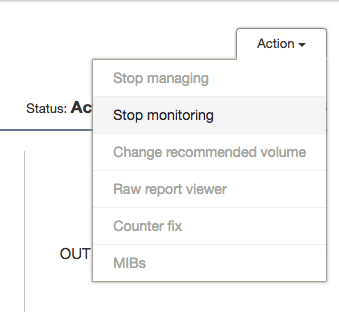
- Option 2: On account level, click settings - device monitoring and use the "unmonitor all" or one by one option.

By stopping monitoring, the device will be removed (and all data) from the account as if it was never there.
To re-activate it, you can go to the account - settings - device monitoring and then re-monitor it. Then it will begin adding data from that day of activation.
Tips and tricks:
- Did you know you can enable an automatic un-monitoring based on last report date? read more here.
- Please note, for invoicing all monitored devices are included regardless of state.
Comments
2 comments
Hi 3manager team
In 3manager the drop down now looks a bit different - it has the Mark as Removed option.
Can you add some information in this article about marking a device as removed and how it works in the state machine for the device.
Thanks
Is there any way to completely remove the machines from the database?
Please sign in to leave a comment.